









Custom Paper Bag Artwork: Do You Need Vector Files?
Not every part of a paper bag design needs to be vector. Learn which files help with logos and photographs, what to check before printing, and how PAQIVA's free custom dielines and design services can help.
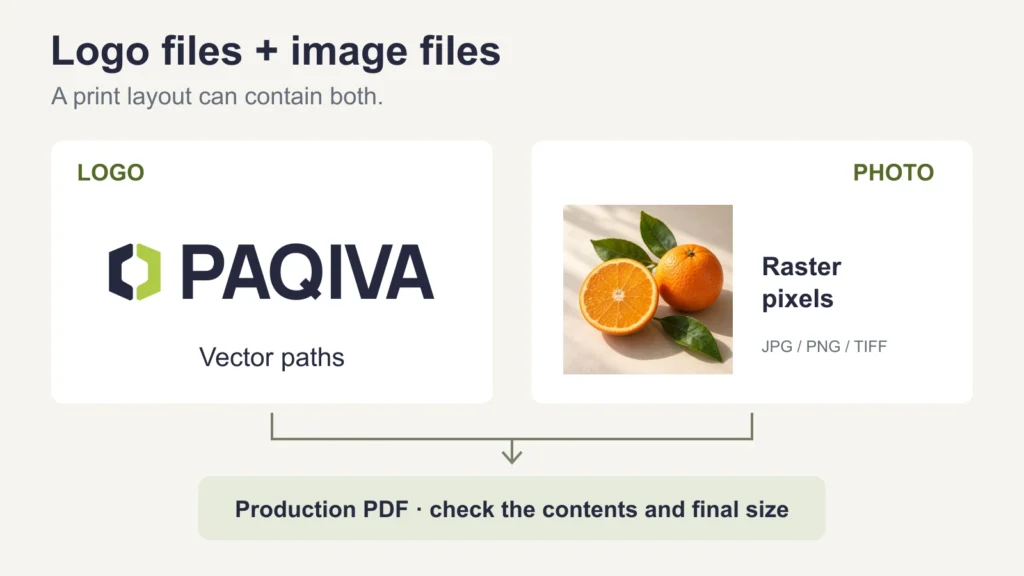
No, the entire design for a custom paper bag does not have to be vector. Vector artwork is usually the best starting point for logos, lettering and clean line graphics. Photographs can remain high-quality raster images. A production PDF can contain both.
If you already have an AI, EPS or PDF logo file, send it for review. If you only have a JPG or PNG, send the clearest version available and explain how large you want it printed. What matters is the artwork inside the file, its intended size and the printing or finishing process—not just the extension.
Which file formats should you prepare?
Start with the files you have, then agree the final production format with the supplier. These are typical uses, not a guarantee that every file with a listed extension is ready to print.
| File or material | How it helps with your paper bag order |
|---|---|
| AI or EPS artwork | Useful for editable logos and line graphics when the objects are genuine vector paths. Include any linked images needed to reproduce the design. |
| PDF artwork | Can hold the complete layout, including vector elements, text and photographs. Confirm its contents, export settings and match to the approved bag dieline. |
| JPG, PNG or TIFF images | Useful for original photographs, image-based artwork and reviewing an existing logo. Check pixel dimensions and intended print size; transparency in a PNG does not make it vector. |
| PSD or other editable source files | May help with layered artwork or changes. Ask which application formats and versions the supplier can work with before final handoff. |
| A mockup or screenshot | Helps explain placement and appearance. Treat it as a visual reference alongside production artwork, rather than assuming it contains usable print detail. |
There is an important difference between sending a reference to start the project and approving a production file. An existing logo image may be enough to discuss the design, even if it needs preparation before printing.
Why a PDF or AI file is not automatically vector
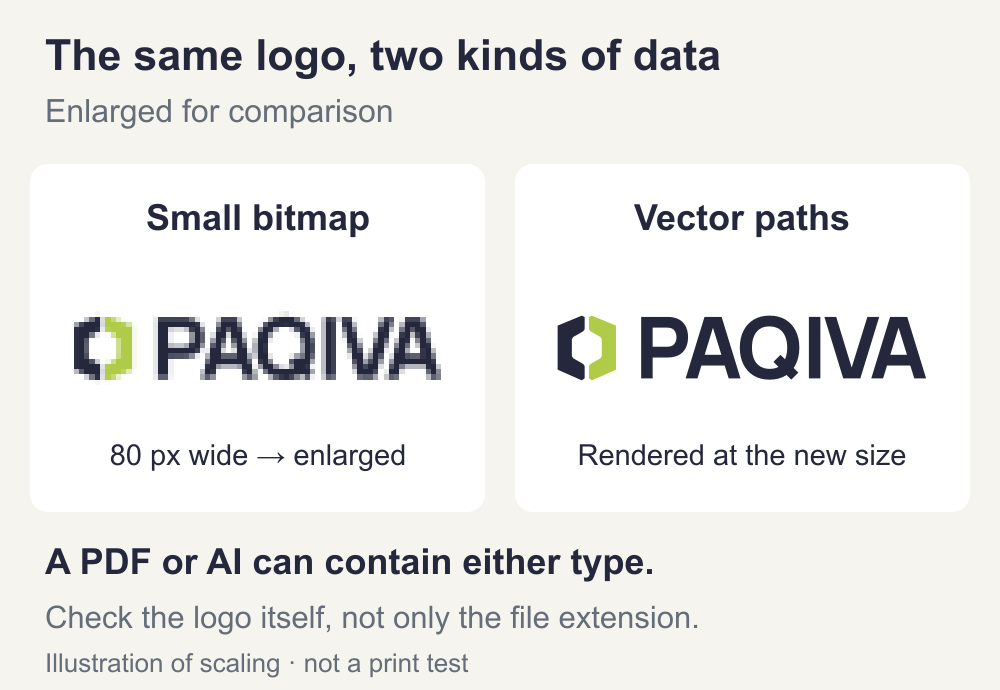
Vector graphics describe shapes with paths. Raster images describe them with pixels. A designer can place a JPG inside an Illustrator document or PDF without converting the picture into paths. Saving a low-resolution logo as a PDF does not recover its missing detail.
Adobe's guide to graphics formats explains why logos and photographic images often use different data types, and why formats such as PDF and EPS can contain either.
Ask the person who created your logo for the original vector version. If you are unsure about a file, ask the supplier to check whether the logo is made from paths or is an embedded image. Zooming in may reveal obvious pixels, but a smooth-looking preview alone does not prove that the artwork is vector.
When vector artwork is especially useful
Vector paths let a logo scale between bag sizes without the pixelation caused by enlarging a small bitmap. They also help define precise shapes for lettering, thin lines and selected finishing areas.
For foil stamping, embossing or spot UV, identify each treatment separately and ask how its artwork should be supplied. The supplier may request named vector objects, a dedicated layer or a separate aligned file. A gold-looking logo or a glossy effect in a mockup does not identify the actual area to be processed.
Vector artwork still needs a production check. Very fine lines, tiny gaps and small lettering can be unsuitable for a particular paper or process even when the file contains perfect paths. Confirm these details against the chosen printing and finishing options.
Can you print a photograph or a JPG logo?
Photographs do not need to be traced into vectors. Supply the original image at sufficient resolution for the area it will occupy on the bag. A photographic panel and a vector logo can sit together in the same layout.
A JPG or PNG logo may also be usable at a suitable size, depending on its quality and the process. It deserves closer inspection because jagged edges, compression marks and unclear small lettering are often more noticeable in a logo than in a textured photograph. A screenshot from a website or messaging app may have lost detail before it reaches the supplier.
Check resolution at the final printed size. Effective PPI means the number of image pixels available per printed inch. For example, a 1,200-pixel-wide image has 300 ppi when placed 4 inches wide (101.6 mm). At 8 inches wide (203.2 mm), the same image has 150 ppi.
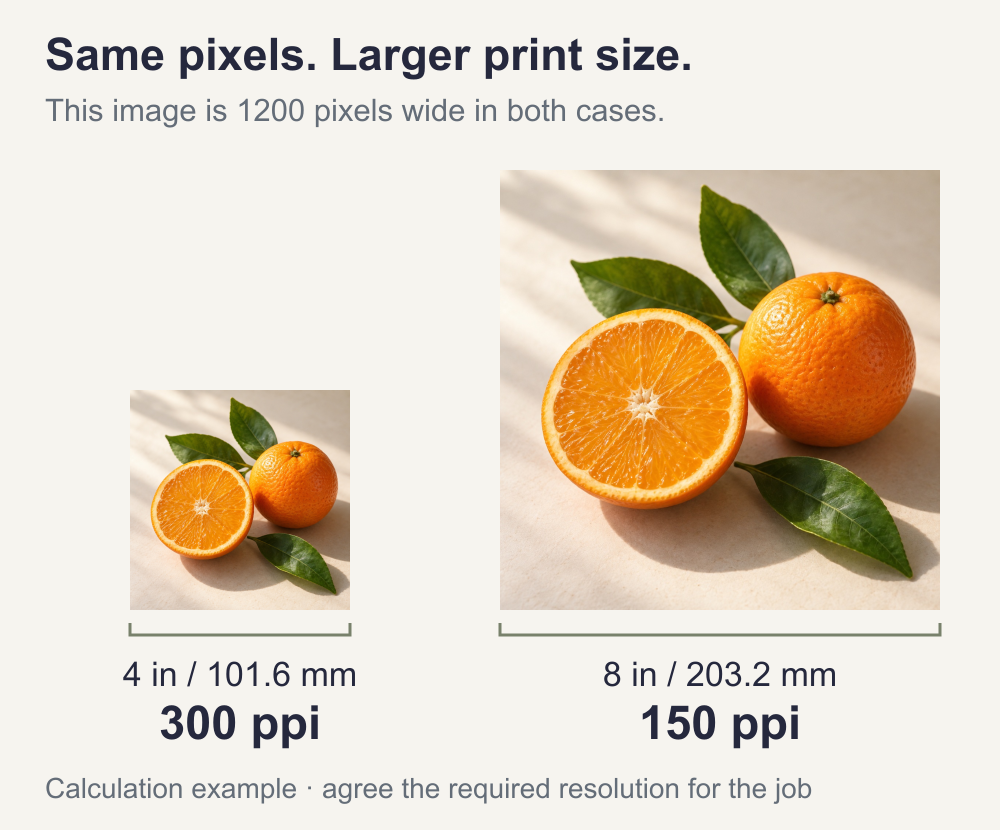
This calculation explains the trade-off; it does not set a universal pass mark. If the supplier requests 300 ppi for your photographic artwork, evaluate it at its actual layout size. The required resolution depends on the content and printing conditions. Changing a resolution label from 72 to 300, without adding pixels, does not create extra detail; adding interpolated pixels is also not the same as recovering the original image.
What if you only have a low-resolution logo?
First look for the source file: ask the original designer, your brand team or whoever prepared previous packaging or signage. An older print PDF may contain usable vector artwork even if you do not have the original design application file.
If the source cannot be found, send the best available image and specify the intended logo width, colours and any special treatment. The artwork can then be assessed for use at that size or for reconstruction.
Automatic tracing can create paths, but it can also change curves, letter shapes, spacing and small details. Adobe's Image Trace guidance explains how the source image and settings affect the result. Review a reconstructed logo against your approved reference before it is placed into production artwork. Do not approve it simply because the new file ends in “.ai”.
What else should be checked before printing?
Use the correct bag dieline
Confirm the finished bag dimensions and construction before arranging the final artwork. Use the custom dieline for that specification, keeping the front, back, side panels, folds and glue areas correctly identified. Do not resize an unrelated template and assume it will fit.
Extend backgrounds into the bleed area where required, and keep important text and logos clear of the specified cuts and folds. Follow the project dieline for the actual margins; there is no single bleed or safe-area measurement that suits every paper bag construction. Keep dieline and production guide marks separate from printable artwork according to the supplier's instructions. See PAQIVA's dieline and artwork preparation guidance.
Check fonts, images, colours and special finishes
- Fonts: agree whether the final PDF should embed fonts or whether approved lettering should be converted to outlines. Check spelling first and keep an editable copy; outlined text is no longer ordinary editable text.
- Linked images: include the original linked files with an editable source document, or embed them as requested. A preview can look complete even when production assets are missing.
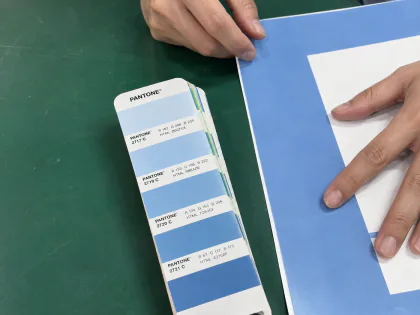
- Colours: identify CMYK and intended spot colours, with the agreed colour references. Ask before converting colour modes or flattening artwork that contains special separations.
- Finishing areas: label foil, embossing and spot UV individually and keep each aligned with the main design. Confirm the supplier's layer, naming and output requirements.
If the supplier requests a print PDF or a PDF/X version, use their agreed export settings. A preset name alone does not check image quality, the right bag size or the accuracy of a logo. Adobe's PDF preparation guidance recommends confirming output requirements with the print provider.
Before approval, review the latest file version at the intended size, including all panels, wording, logo placement, image detail and finishing areas. Use a physical sample for the paper, colour and finish decisions it is intended to represent; a screen mockup does not establish the finished bag's exact appearance.
Free custom dielines and paper bag design services from PAQIVA
PAQIVA provides free custom-size dielines and free paper bag design services. You do not need to have every artwork file ready before starting the conversation.
Contact PAQIVA with your logo or best available artwork, the required bag size and quantity, your paper and colour preferences, and any printing or finishing requirements. Include a reference showing the layout you want. Once the size and construction are confirmed, the custom dieline gives the design a clear basis for preparation and approval.