














Paper Bag Dielines: How to Read the Template and Prepare Artwork
Understand paper bag panels, cut and fold lines, bleed and artwork placement. PAQIVA provides a free blank dieline after the bag dimensions and structure are confirmed.
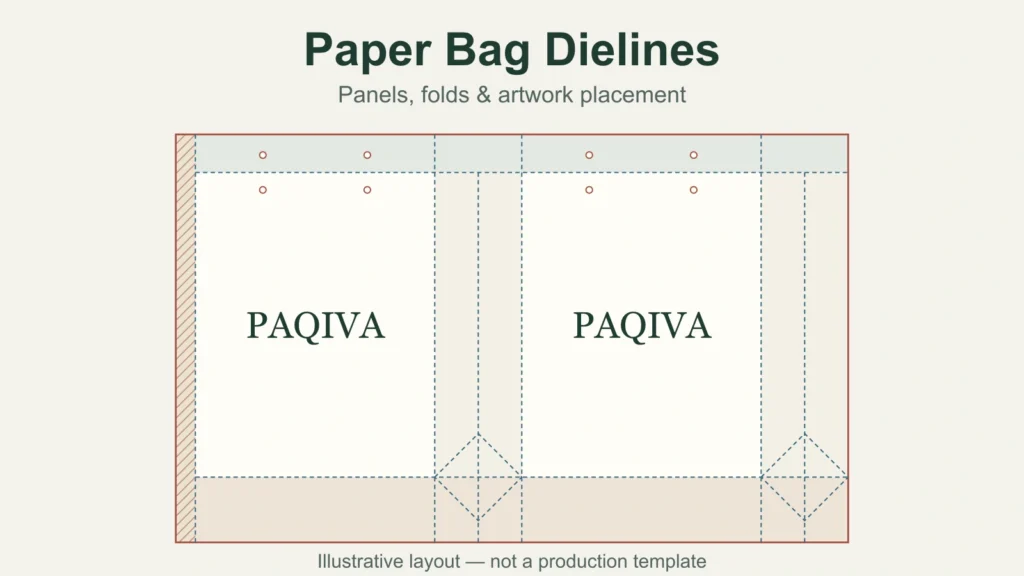
A paper bag dieline is a flat technical layout showing how the paper is divided, cut, folded and joined to form the bag. It gives a designer the positions of the front, back, side panels and construction areas, so artwork can be placed on the correct surfaces.
Start with the bag size and structure, then request the matching blank dieline before arranging your logo or graphics. This lets you design around the folds, handle positions and joining areas from the beginning. PAQIVA provides a free blank dieline after the dimensions and structure are confirmed, giving your designer a clear starting point.
What does a paper bag dieline show?
For a typical shopping bag printed before assembly, the unfolded layout includes two main faces, two side panels, a joining tab, a top turn-in and a bottom folding area. Depending on the handle construction, it may also show holes, attachment positions or reinforcement zones.
The front and back usually carry the main branding. The side panels form the gussets that open when the bag is filled. The top turn-in folds toward the inside, while the lower section forms the bottom. A joining tab connects the edges of the sheet to make the bag body.
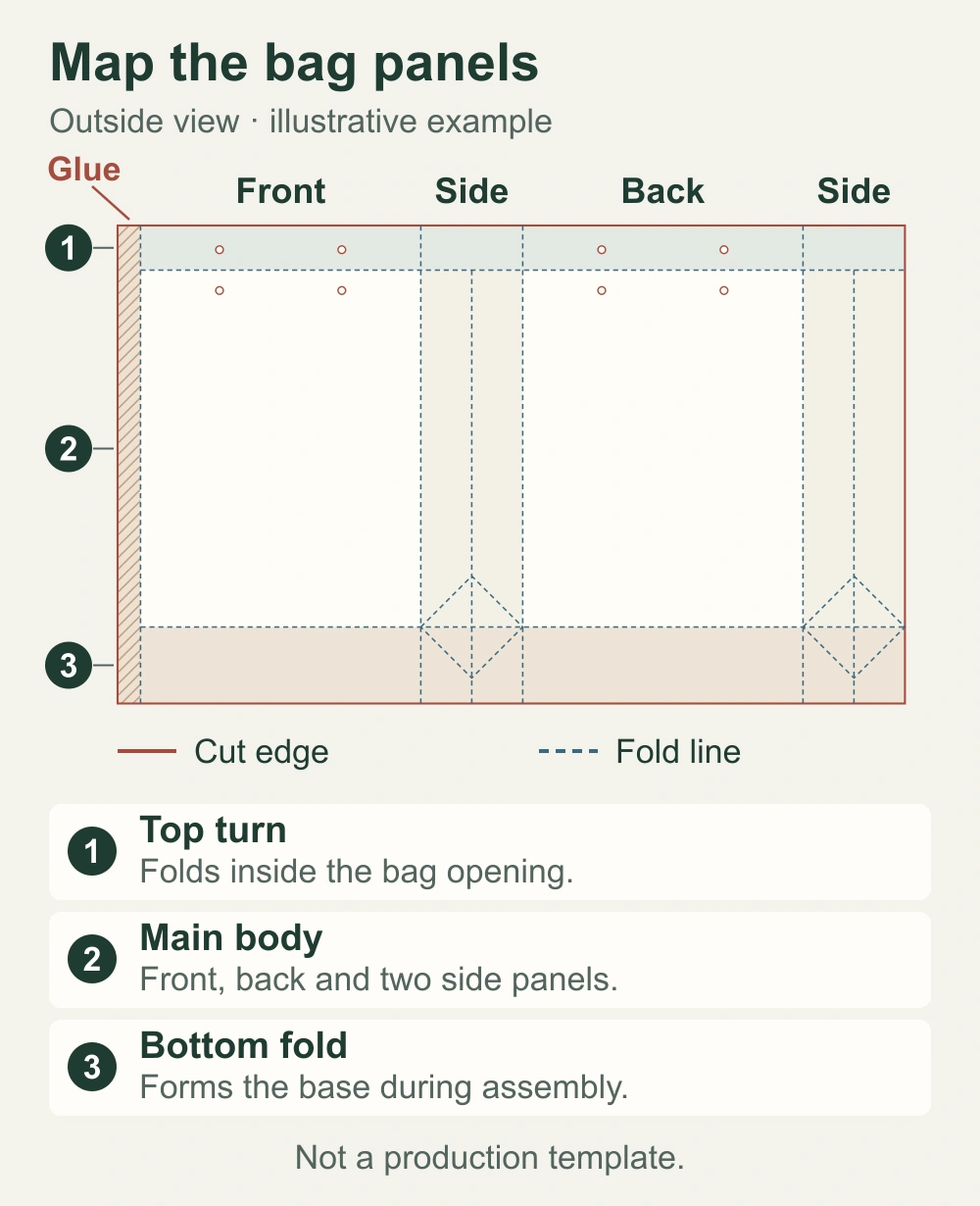
This example uses a bag size of 220 × 80 × 280 mm: front width × side depth × bag-body height, excluding the handles. Those dimensions describe the intended finished bag. The full flat layout also needs space for the joining tab, top turn-in and bottom folds. A 220 × 280 mm rectangle alone therefore cannot describe the whole bag.
The illustrations here explain the layout and artwork positions; they are not production templates. Construction details vary with the bag style, paper and manufacturing route. Use the file prepared for your own project rather than resizing a diagram from an article.
How to read the lines and marked areas
Read the legend before interpreting the drawing. Line colors and styles are conventions within a particular file, so a red line in one template may have a different meaning in another. Labels and production notes determine what each line represents.
| Mark or area | What it tells the designer | What to do with the artwork |
|---|---|---|
| Cut line and hole outlines | Where the material is cut or openings are made | Keep critical artwork clear; follow the specified bleed where needed |
| Fold or crease line | Where a panel turns or folds | Check which face the artwork will appear on after folding |
| Bleed boundary | How far edge-to-edge artwork should extend beyond the cut | Extend backgrounds to the required boundary |
| Safety boundary | The area intended to keep important content away from vulnerable edges | Keep essential text and logos inside it, with other structural exclusions respected |
| Glue, attachment or reinforcement area | Space needed for joining or fitting components | Follow the restrictions marked for that particular area |
A dotted line does not automatically mean perforation. In a paper bag layout it may identify a fold or another reference guide. Likewise, visible handle holes on the flat sheet need to be read together with the top fold; their arrangement is part of the structure, not something to move for a more symmetrical artwork file.
Bleed and safe space serve different purposes
Bleed is the extra background image or color beyond the intended cut edge. It provides trimming allowance when the design runs to the edge of the paper. Adobe's guidance on print bleeds explains this outside-edge extension and advises consulting the print shop about the amount required.
Safe space works inward: it keeps essential content away from edges and other areas where it could be cut, obscured or disrupted. A logo can sit inside the outer cut boundary and still be badly placed if it crosses a gusset fold, occupies the top turn-in or sits under a handle attachment.
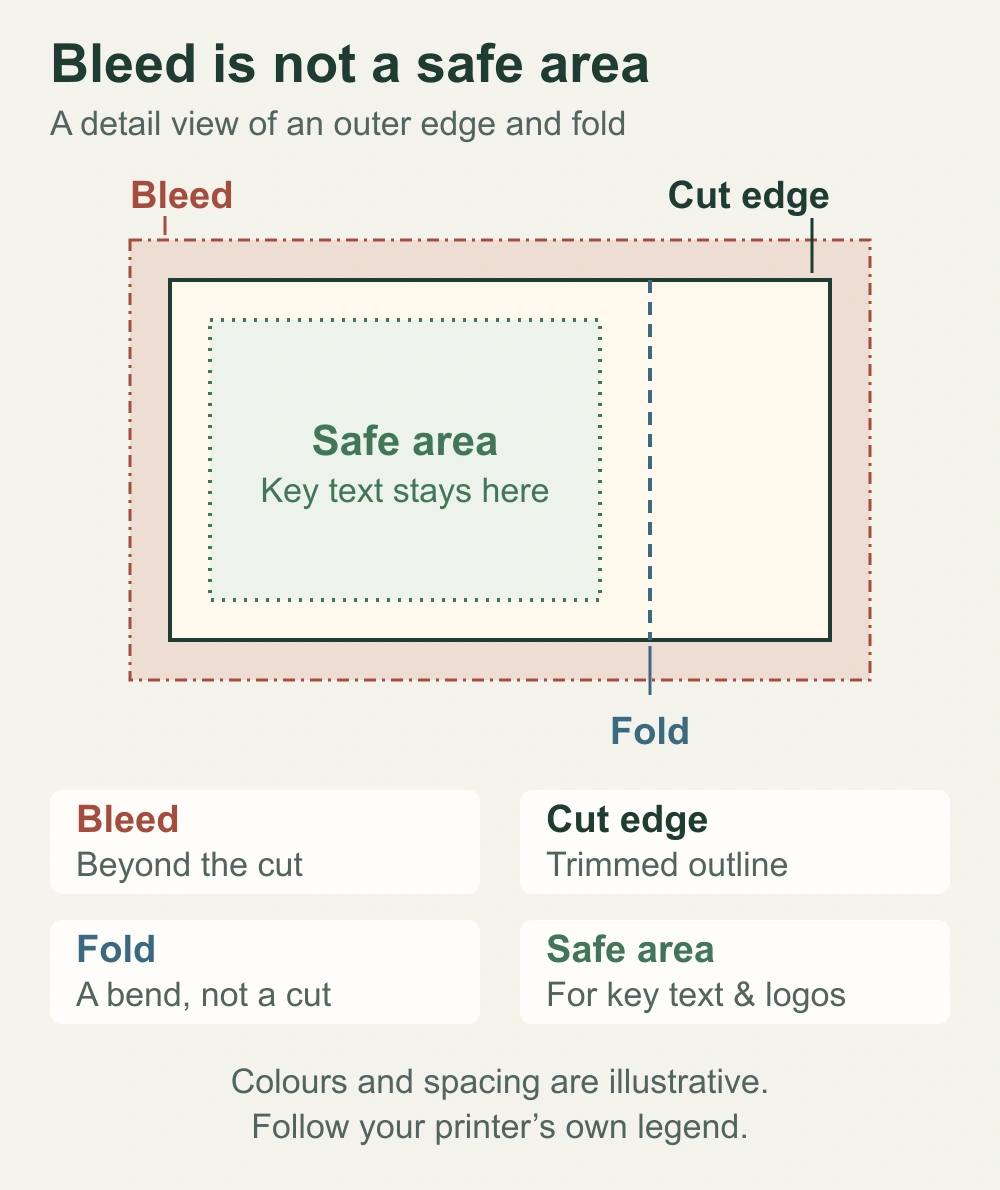
Follow the bleed and clearance notes on the supplied dieline. A single fixed allowance is not suitable for every paper bag. Background graphics may continue through folds where intended, while small text, contact details and a QR code benefit from a clear, usable panel. Check any QR code at its intended printed size and position before approval.
Place the artwork on the finished faces
Work from the panel labels and the stated viewing direction. An outside-view layout helps you see where the front, back and sides will appear, but the turn-ins and bottom sections still need to be understood in their folded positions.
In the PAQIVA artwork example, the main mark is placed separately on the front and back. Each mark is centered within its own face. Centering a logo across the entire unfolded sheet would ignore the side panels and joining tab, and could put the design across a fold.
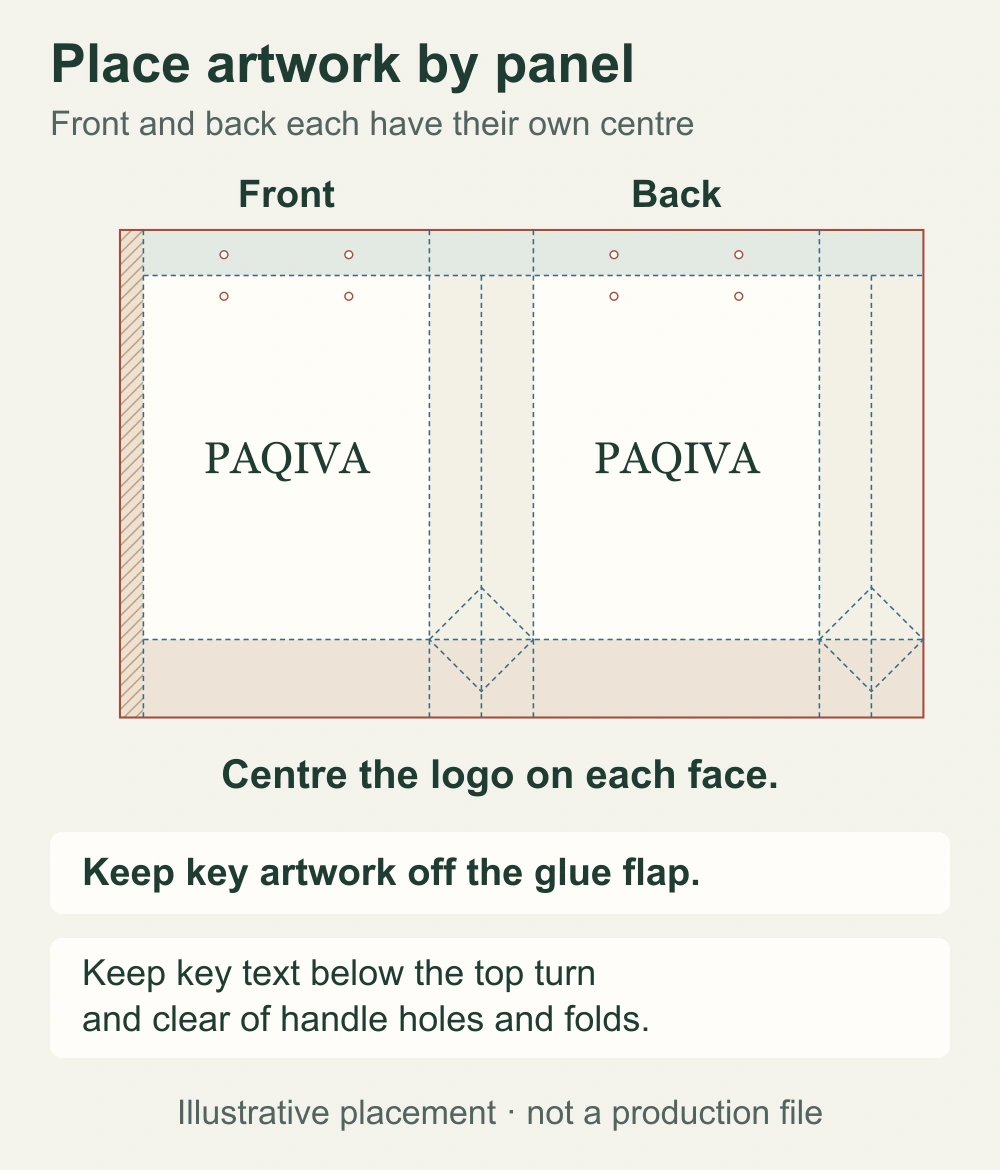
There are several useful decisions to make at this stage:
- Front and back: decide whether both faces carry the same design or different messages, and check each panel's orientation.
- Side panels: allow for the gusset folding inward; keep information that must remain easy to read on a suitable visible area.
- Top and handles: keep key text clear of the turn-in and handle features shown on the template.
- Bottom and joining areas: follow the marked restrictions rather than treating every blank area as an available print surface.
A continuous pattern needs a separate check at panel transitions and the joining seam. Artwork that meets neatly on screen may not line up perfectly after printing, folding and assembly. Discuss the intended effect before approving a design that depends on exact alignment across several faces.
Prepare the file without changing the structure
Use an editable vector template at the supplied scale. Keep the structural guides on a separate, clearly named layer and lock them while placing the artwork. Do not stretch the entire file to change the bag size or move a fold line to make a logo fit. Request a revised dieline when the dimensions or construction change.
Add the artwork on separate layers, retaining the panel labels and manufacturing notes for review. Keep logos as vectors where available, check placed images at their actual output size, and follow the agreed color and special-finish instructions. PAQIVA's printing and artwork guide explains the wider artwork discussion.
Before sending the file, check the following:
- The dimensions, units and dieline revision match the agreed bag.
- Images are embedded or supplied as requested, and fonts are included or converted to outlines in the agreed delivery copy.
- Backgrounds reach the specified bleed; essential content stays clear of folds, holes and restricted areas.
- Structural guides and finishing separations are clearly identified so they are not accidentally printed as artwork.
Retain an editable original for later corrections. A screenshot or flattened preview can communicate appearance, but it does not replace the working artwork file and structural information needed for review.
Review the layout, appearance and physical bag together
A blank dieline defines the layout available for design. An artwork proof shows how the graphics sit on that layout. A mockup helps visualize the assembled appearance, while a physical sample lets you examine the actual folds, openings and product fit. Each answers a different question.
For a new size, begin with the packaged product dimensions and the way it will be placed in the bag. Our paper bag measuring guide explains the dimension order and the difference between outside measurements and usable space. Check the proposed structure and artwork together before approving production; a convincing mockup alone does not establish physical fit.
Get a free blank paper bag dieline from PAQIVA
PAQIVA provides a free custom-size blank dieline once the bag dimensions and structure are confirmed. You or your designer can use it to position the logo, colors and other graphics on the correct panels. The free service covers the blank template; artwork design, mockups and revisions are discussed separately according to the work required.
PAQIVA also plans to introduce an online paper bag dieline generator, making it easier for customers to start their layouts. Until that service is available, send PAQIVA your bag requirements, including the intended size, packaged contents, handle style and order quantity, and request the matching blank dieline.